
Track time and approve hours
Your team clocks in and out from their phone, and you approve hours before they post to the books.
Free forever Not a trial. No card, no contract, unlimited staff. Card payments cost 3.9% + 30¢. Our promise →
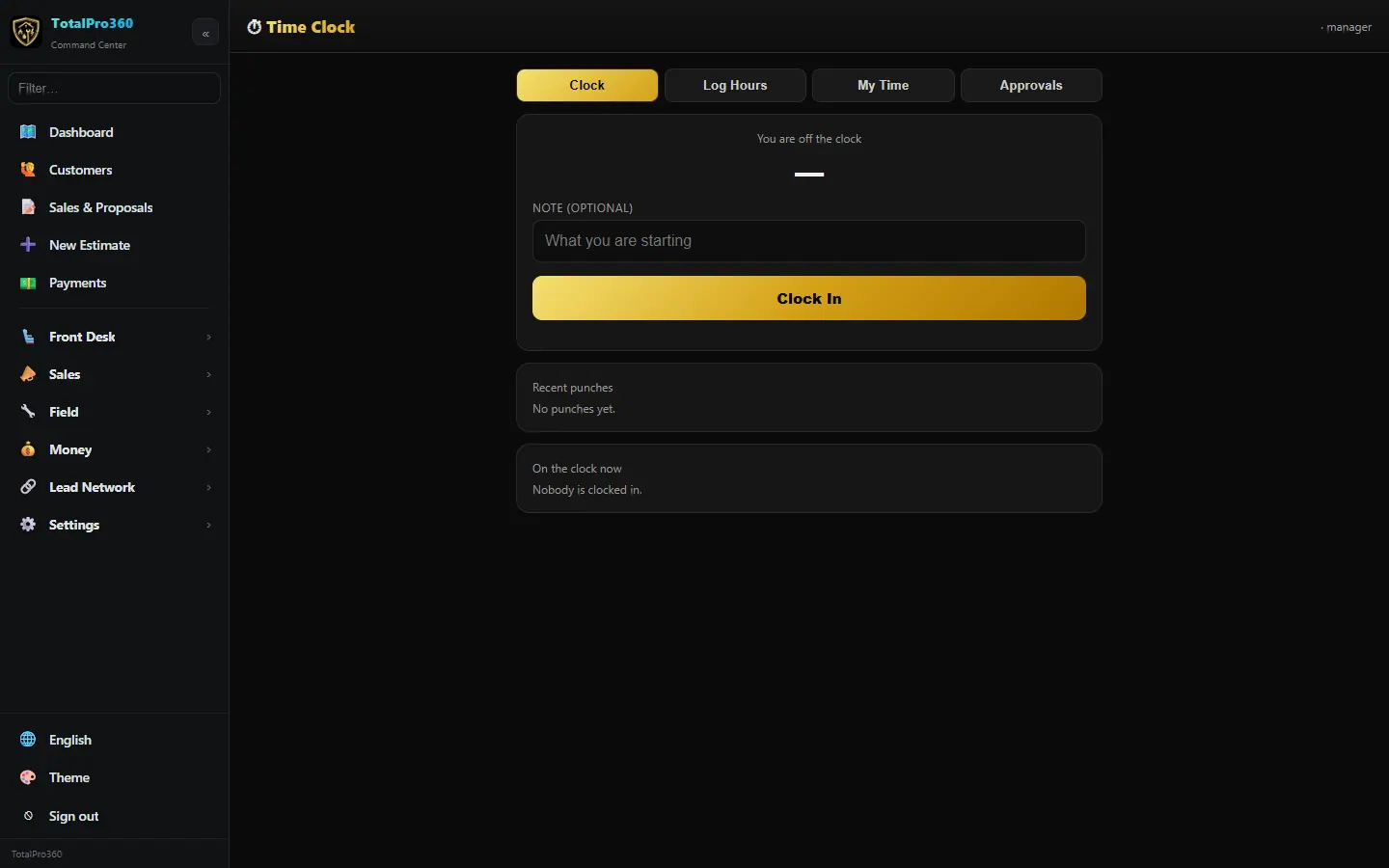
Step 1: Set up time tracking in one place
Open Settings → ⏱ Time Tracking Setup. Start with How does your team clock in?
- 🕖 Shift: everyone clocks in at the start of the day and out at the end of the shift. After-hours and on-call calls get their own clock in and out.
- 📍 First job: staff are clocked in automatically when they arrive at their first job.
- ✋ Manual only: everyone taps Clock In and Clock Out. Nothing happens automatically.
The same page holds work hours (company and per person), who’s on call, clocking out at home, and lunch and breaks. Click Save at the bottom.
Step 2: Shift mode: the day shift and after-hours calls
In Shift mode, nobody can clock in before the work hours start. You can also turn on Clock techs in automatically when they arrive at the shop, which uses your Company Profile address. If someone’s still clocked in a while after the shift ends (30 minutes unless you change it), their app reminds them to clock out.
For a call after hours, the tech clocks in again. That punch is kept apart from the day shift and marked After hours, or On call when they’re the on-call tech.
Step 3: Pick who’s on call
In Settings → ⏱ Time Tracking Setup under On call (or on the dispatch board), pick tonight’s on-call tech, or open Weekly schedule to set a rotation and change single nights. The tech on call gets after-hours calls from your phone line, sees 📟 You’re on call and + Add service call in their app, and can clock in outside work hours for an on-call call. Everyone else still can’t clock in early. Change the pick and all of that moves to the new tech.
Step 4: Clock in and out
Open Staff & Products → Timesheets (or the time clock in the provider app) and tap Clock In, with an optional note. Tap Clock Out at the end.
Step 5: Log hours after the fact
On Log Hours, enter the date, hours, type and a note, then Submit Hours.
Step 6: Approve hours
Managers open Approvals, review the hours and approve them. Approved time posts to your books.
Step 7: Clock someone out from the office
Forgot to clock out? Managers can do it for them. Find the person under On the clock now on this page, on their staff card in the Appointment Book or on Settings → Users & Permissions, or right-click their staff card, and click Clock out.
The dialog shows when they clocked in and warns you if they’re still on a appointment. Set the clock-out time (it starts at now), add a Reason if you like (for example, “Forgot to clock out”), and tick Text the tech that they were clocked out if you want them told by text, which needs the phone system add-on. Click Confirm clock out. The hours go to the timesheet for approval like any other.
The provider sees a notice in their app: “You were clocked out at … by …”, with your reason, and taps Got it.
Step 8: Bring in ADP payroll (if you use it)
Open Money → Payroll · ADP to import an ADP payroll report so pay runs land in your books. Our own payroll is coming in December 2026; see payroll.
Step 9: Work hours and on-call
Set each tech's work hours on their team card (Staff → Teams → 🕖 Work hours), or company hours in Settings → ⏱ Time Tracking Setup. Nobody can clock in before their start time; owners can exempt themselves. When someone is on call and has an on-call job, the hours don't apply and the punch is marked on call. If you allow early-start requests, approve them at the top of this page.
Still stuck? Tell us what you were trying to do and where you got stuck. A screenshot helps.
Your ticks are saved in this browser only. Updated October 2026.