
Read your dashboard and reports
Know your numbers from the dashboard scoreboard, then run reports for any date range.
Free forever Not a trial. No card, no contract, unlimited staff. Card payments cost 3.9% + 30¢. Our promise →
Step 1: Read the scoreboard
The Dashboard opens on today: Today’s appointments (how many are still to come and how many are in now), Finished today with the day’s booked value, the Next 7 days, and New clients this month. Below that:
- Staff utilization: hours booked against hours your staff are on shift today, from each person’s hours in the service menu.
- Rebooking rate: of the clients whose last visit was two to ten weeks ago, how many already have their next visit booked.
- Retail: products sold this month at checkout.
- Memberships: active members, the monthly value and how many bill in the next 7 days.
Every card, tile and number is a shortcut. Click or tap it to open the page behind it: the Appointment Book, your clients, Front Desk Tools for retail and memberships.
Step 2: Run a report
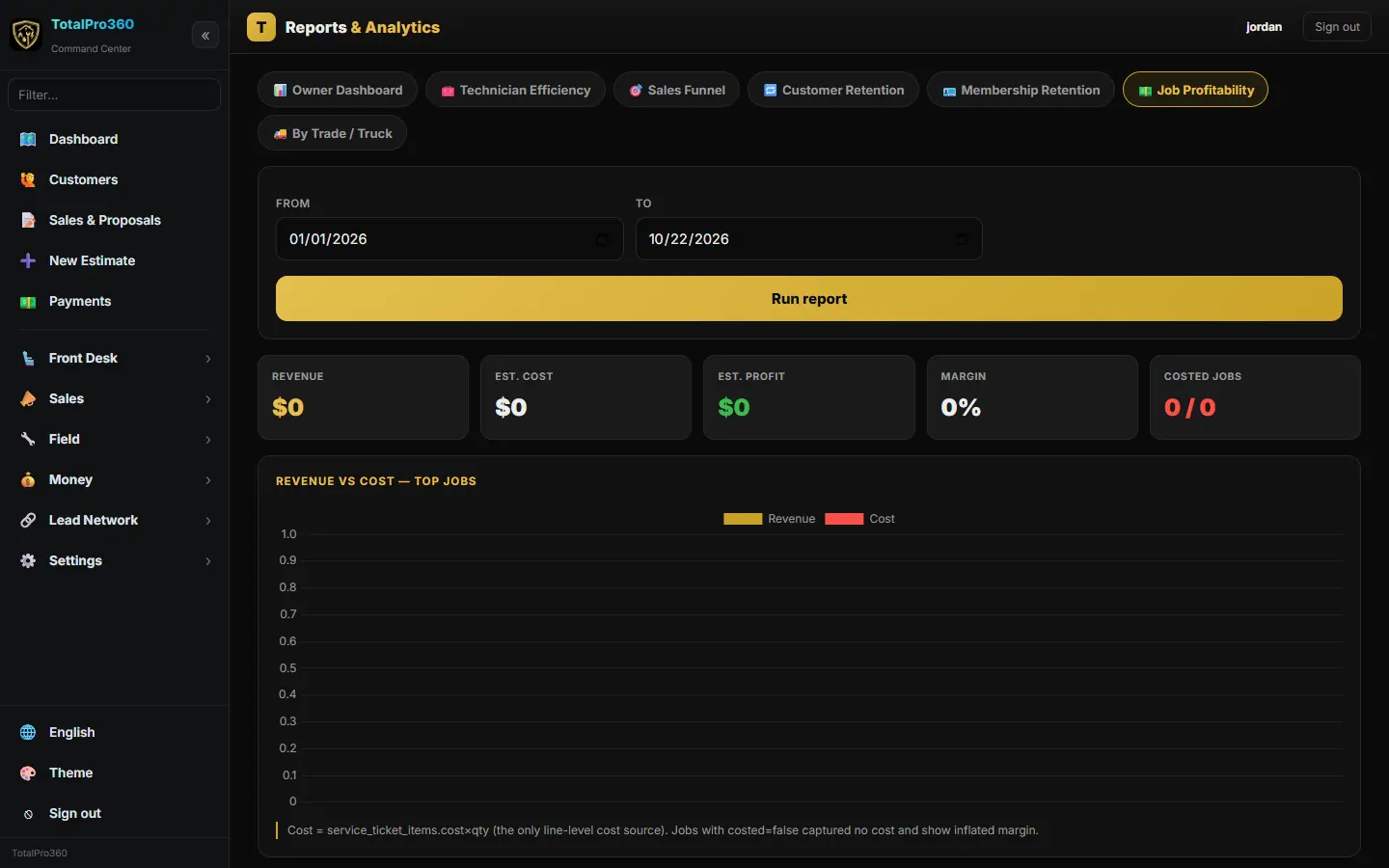
Open Money → Reports, pick a report and a date range, and click Run report. Group by month or by provider where it’s offered.
The reports are named for your business: Staff Productivity, Client Retention and Service Profitability. Commissions & tips and Retail open those reports in Front Desk Tools, and Memberships opens your member list.
The Owner Dashboard counts appointments: Appointments Completed and Appointments Upcoming / Open for the dates you pick, and Active Memberships. Est. Profit and Margin take off staff commissions and the cost of retail products sold; until you set commission rates and product costs they show a dash instead of a made-up number.
Step 3: Open, print or export it
When you run a report, it opens in its own window over the page as a PDF preview. Use Download to save the PDF, Print to print it, or Export to save it as Excel (.xlsx), PDF or CSV for your accountant or partners. Click Exit (or press Esc) to go back to the report on the page, and Open as PDF to bring the window back.
Still stuck? Tell us what you were trying to do and where you got stuck. A screenshot helps.
Your ticks are saved in this browser only. Updated October 2026.
Questions about this
Do I need to set anything up for reports?
No. They fill in as you book, invoice and collect.