
Send campaigns and ask for reviews
Email the right slice of your client list, and send review requests that track who clicked.
Free forever Not a trial. No card, no contract, unlimited staff. Card payments cost 3.9% + 30¢. Our promise →
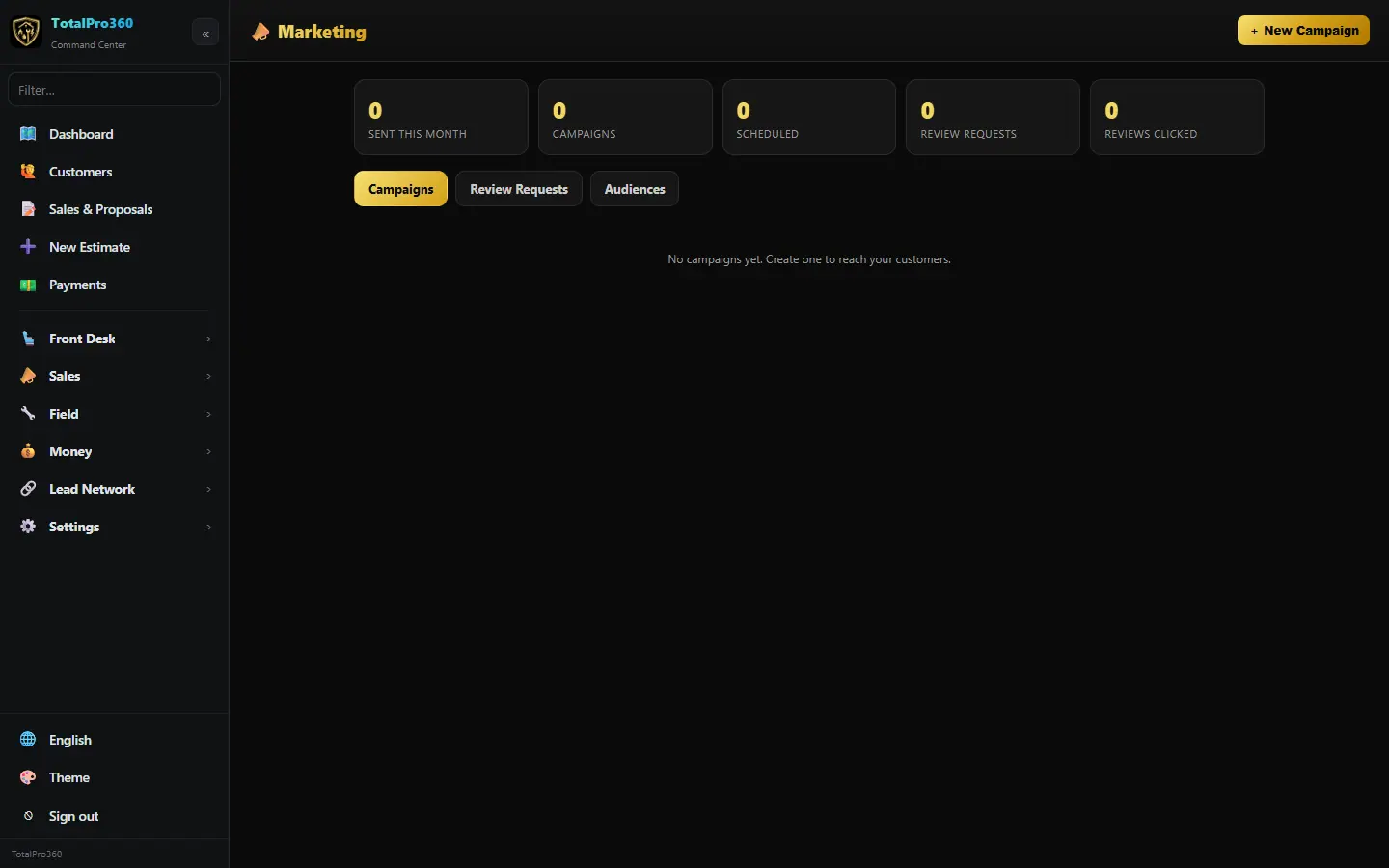
Step 1: Start a campaign
Open Sales → Marketing and click + New Campaign. Give it a name and pick the channel. Email is free; text campaigns need the phone system add-on.
Step 2: Pick the audience
Choose who it goes to, for example clients with no visit in the last so many days. Click Preview your audience to see exactly who’s in it before you send.
Step 3: Write it and send or schedule
Write the subject and message. Leave the schedule blank to save a draft, or pick a time. Every email includes a one-click unsubscribe.
Step 4: Ask for a review
Open the Review Requests tab and click + Review Request, pick the client (and the visit if you like) and send it. It sends your review link and tracks the click; the client leaves the review on the site you choose.
Step 5: Check results
Click Results on a campaign to see who it reached and who clicked.
Still stuck? Tell us what you were trying to do and where you got stuck. A screenshot helps.
Your ticks are saved in this browser only. Updated October 2026.
Questions about this
Does it post Google reviews for me?
No. It sends your review link and tracks the click. The customer leaves the review themselves.