
Build quotes and treatment plans
Quote multi-visit packages, med spa treatment plans and bridal parties, send them by text or email, and let the client pick, sign and pay a deposit from their phone.
Free forever Not a trial. No card, no contract, unlimited staff. Card payments cost 3.9% + 30¢. Our promise →
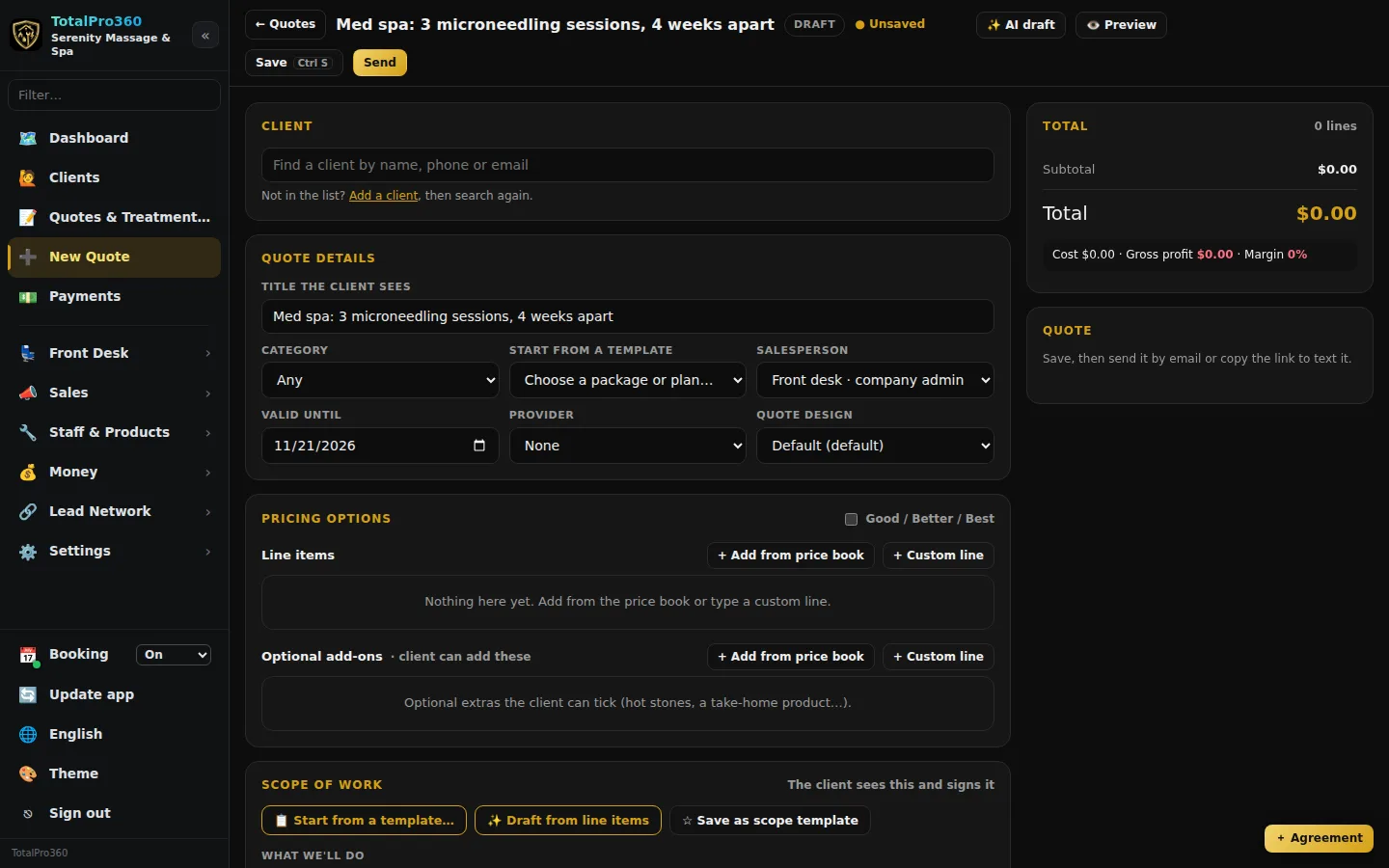
Step 1: Start a new quote
Click New Quote in the menu. Find the client (or add one), then give the quote a title the client sees, for example Bridal party: hair for 5, Six deep-tissue sessions or 3 microneedling sessions, 4 weeks apart. Pick the category, the salesperson, the provider and a Valid until date. You can Start from a template you saved earlier.
Step 2: Add the visits and extras
Under Pricing options, click + Add from price book for items in your price book, or + Custom line to type a visit and its price. For a plan with several visits, add one line per visit (or one line with a quantity). Put extras the client can choose, like an add-on treatment or a take-home product, under Optional add-ons. Tick Good / Better / Best to offer, say, three sessions, six sessions or six plus a take-home kit side by side. The total updates on the right as you go.
Step 3: Write the plan
The Scope of work card is the plan the client reads and signs: What we’ll do (the visits in order), What’s included, Not included / exclusions, Client responsibilities (for example no retinol before a peel, or arrive with dry hair) and Timeline / duration. Click Save as scope template to reuse it for the next bride or the next series. See Write a scope of work.
Step 4: Set the deposit and terms
Under Tax, discount, deposit & financing, set the tax rate, any discount and a Deposit to book (a percent or a dollar amount). Fill in your terms. You can show an “as low as” monthly figure from the APR and months you enter; no lender is connected, so it’s labeled an estimate.
Step 5: Preview and send
Click Preview to see it as the client will, Save (or Ctrl+S), then Send it by email or copy the link to text it. The email has a big View my proposal → button, plus 📄 View PDF and ✓ Accept proposal, so the client gets there in one tap. The client opens the link on their phone, picks an option, ticks any add-ons, reads the plan, signs on the screen and pays the deposit by card or bank. Questions they send show on the quote under Client questions.
Step 6: Follow up and book the visits
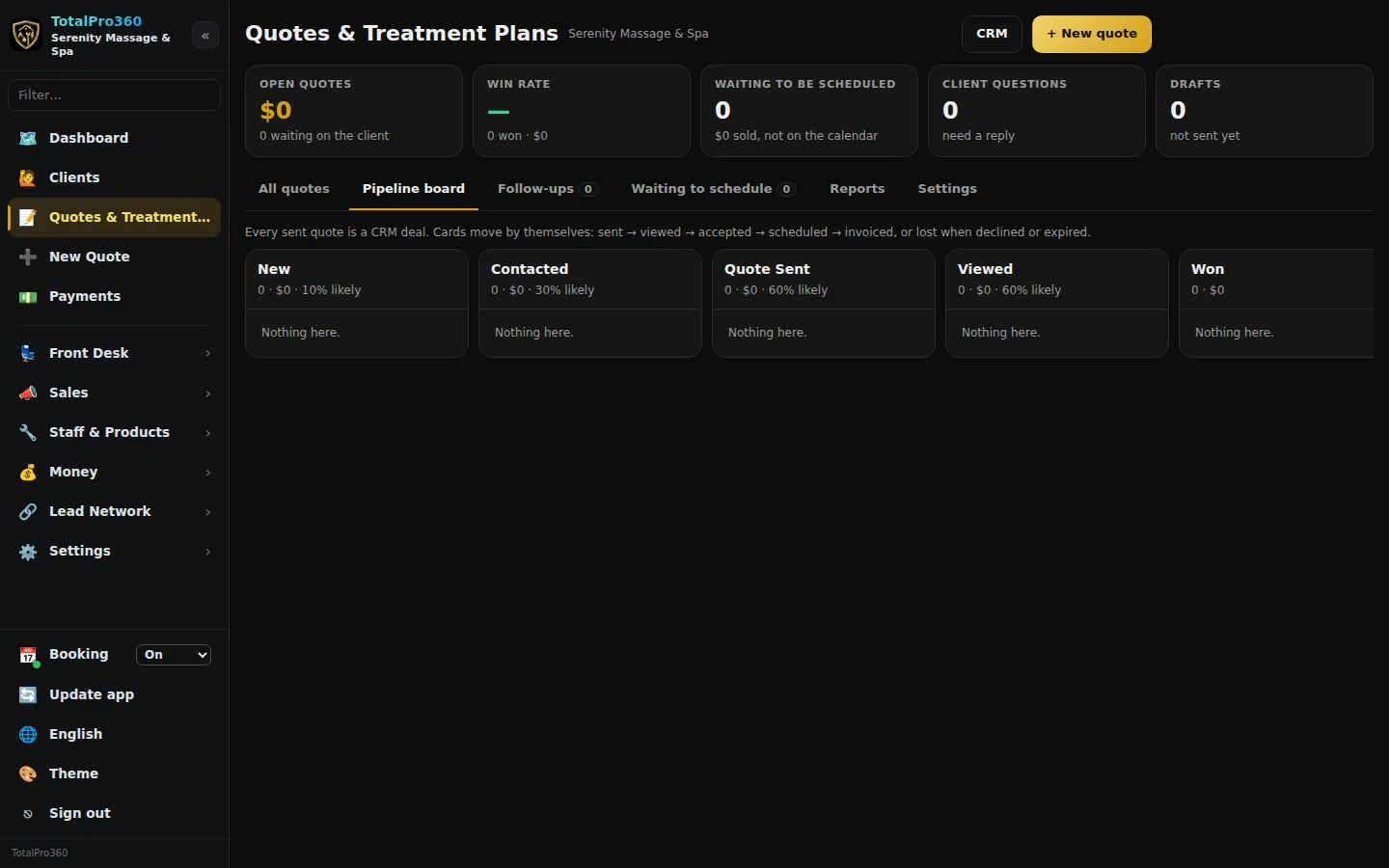
Open Quotes & Treatment Plans to see every quote on the Pipeline board (sent, viewed, accepted), your Follow-ups and what’s Waiting to schedule. When a client accepts, book their visits in the Appointment Book. Any deposit they paid comes off the invoice.
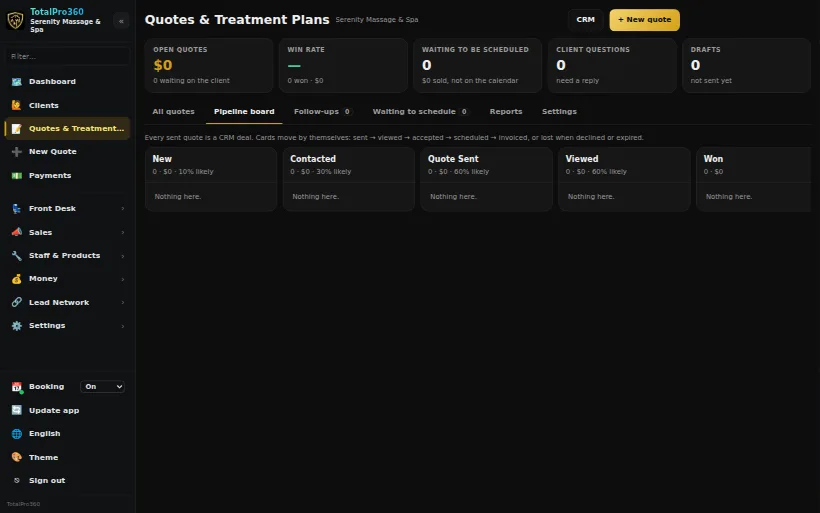
Real screen from the demo account; names and numbers are sample data.
Still stuck? Tell us what you were trying to do and where you got stuck. A screenshot helps.
Your ticks are saved in this browser only. Updated October 2026.
Questions about this
What is the Customer list? Is it the old CRM?
Yes. The Customer list is what we used to call the CRM. It keeps every customer and lead in one place with tags, notes, follow-up tasks and their deals. Every quote or proposal you send becomes a deal there and moves by itself as it’s viewed, accepted, scheduled and invoiced. Open it from the Customer list button on Quotes & Treatment Plans (TotalPro360) or Sales & Proposals (MyHomeService360), or from Sales in the side menu.
Can one quote cover several visits?
Yes. Add a line for each visit (or one line with a quantity) and spell out the timing in the plan, for example three sessions four weeks apart.
Does accepting a quote book the appointments?
Not by itself. The quote moves to Waiting to schedule, and you book the visits in the Appointment Book, so each one lands with the right provider and room.
Are follow-up emails automatic?
Only if you turn them on. Quote follow-ups start off.