
Use intake forms and waivers
Build intake and consent forms with e-signature, send them before the visit, and keep them on the client record.
Free forever Not a trial. No card, no contract, unlimited staff. Card payments cost 3.9% + 30¢. Our promise →
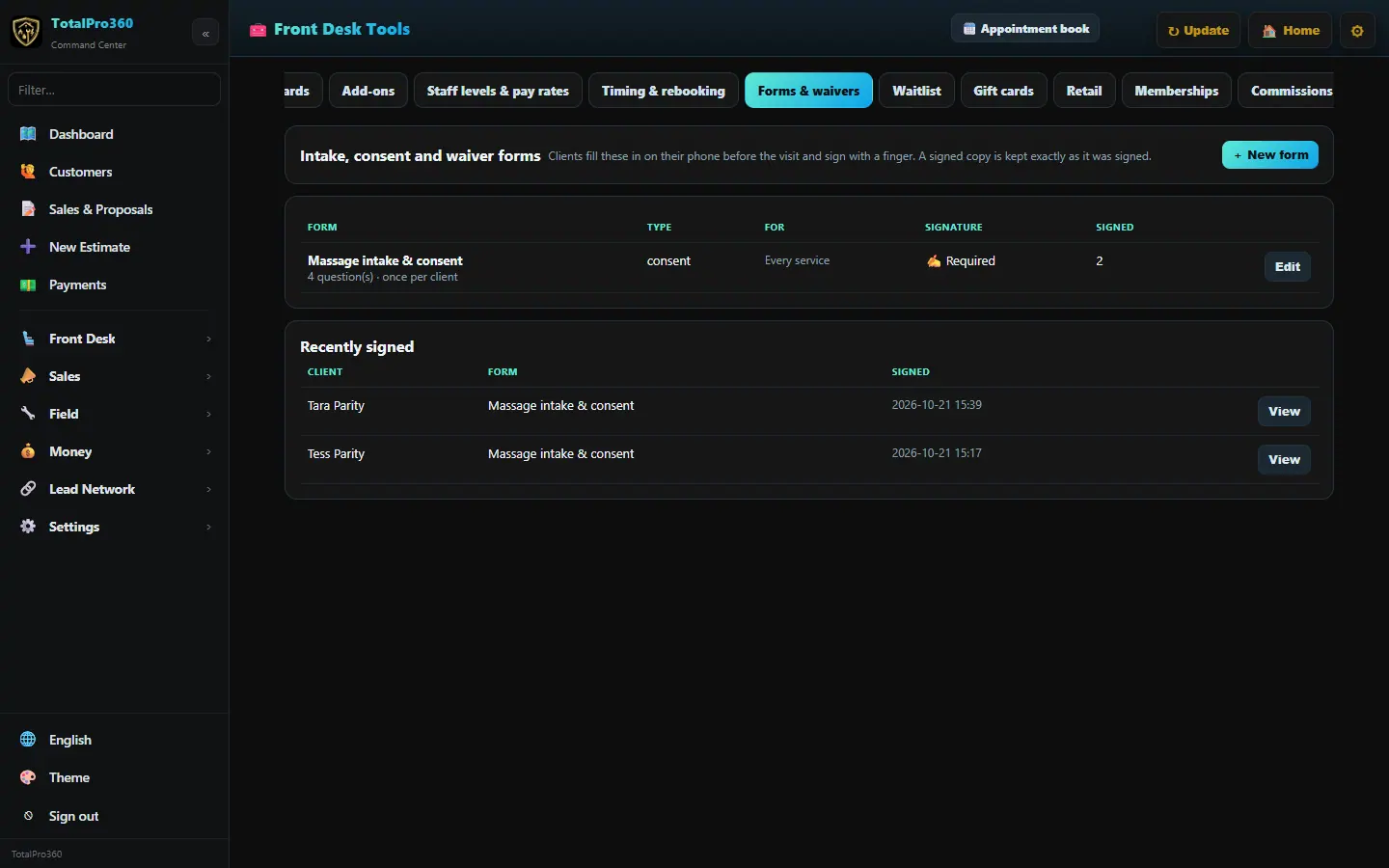
Step 1: Create a form
Open Front Desk → Forms & Waivers and click + New form, or Use a starter intake to start from a template. Pick the type, write the intro, and add questions with + Question.
Step 2: Preview it
Click Preview next to the form. It opens exactly what your client sees on their phone. Fill it in and sign to try it: nothing is saved in preview.
Step 3: Make it go out with bookings
Under Ask for it on, pick the services that need it, or none to ask on every service. Click Save form. From then on, when a client books one of those services, the confirmation screen, text and email link the forms they haven’t signed yet. A form set to once per client isn’t asked for again after they sign it.
Step 4: Send it to a client yourself
Click Send next to the form, search for the client and pick them. Then click Copy link to paste it into your own message, or Text it or Email it to send it from your business. Text and email only work when the client has a mobile number or email on file. You can also open an appointment in the Appointment Book and text the client their forms link from there.
Step 5: View and print signed forms
Signed forms are listed in Forms & Waivers and on the client record. Click View, then Print for a clean, letter-size copy: your business name and logo at the top, the client and date signed, every question with its answer, and the signature.
Still stuck? Tell us what you were trying to do and where you got stuck. A screenshot helps.
Your ticks are saved in this browser only. Updated October 2026.
Questions about this
How do I test a waiver without bothering a real client?
Click Preview: nothing is saved. To test the whole trip, add a test client with no phone or email, click Send, pick them, click Copy link and open the link yourself. The signed copy shows under Recently signed, and you can delete the test client afterward.