Sell retail and track commissions
Track retail stock with barcodes, sell at checkout, and see commissions and tips by provider.
Free forever Not a trial. No card, no contract, unlimited staff. Card payments cost 3.9% + 30¢. Our promise →
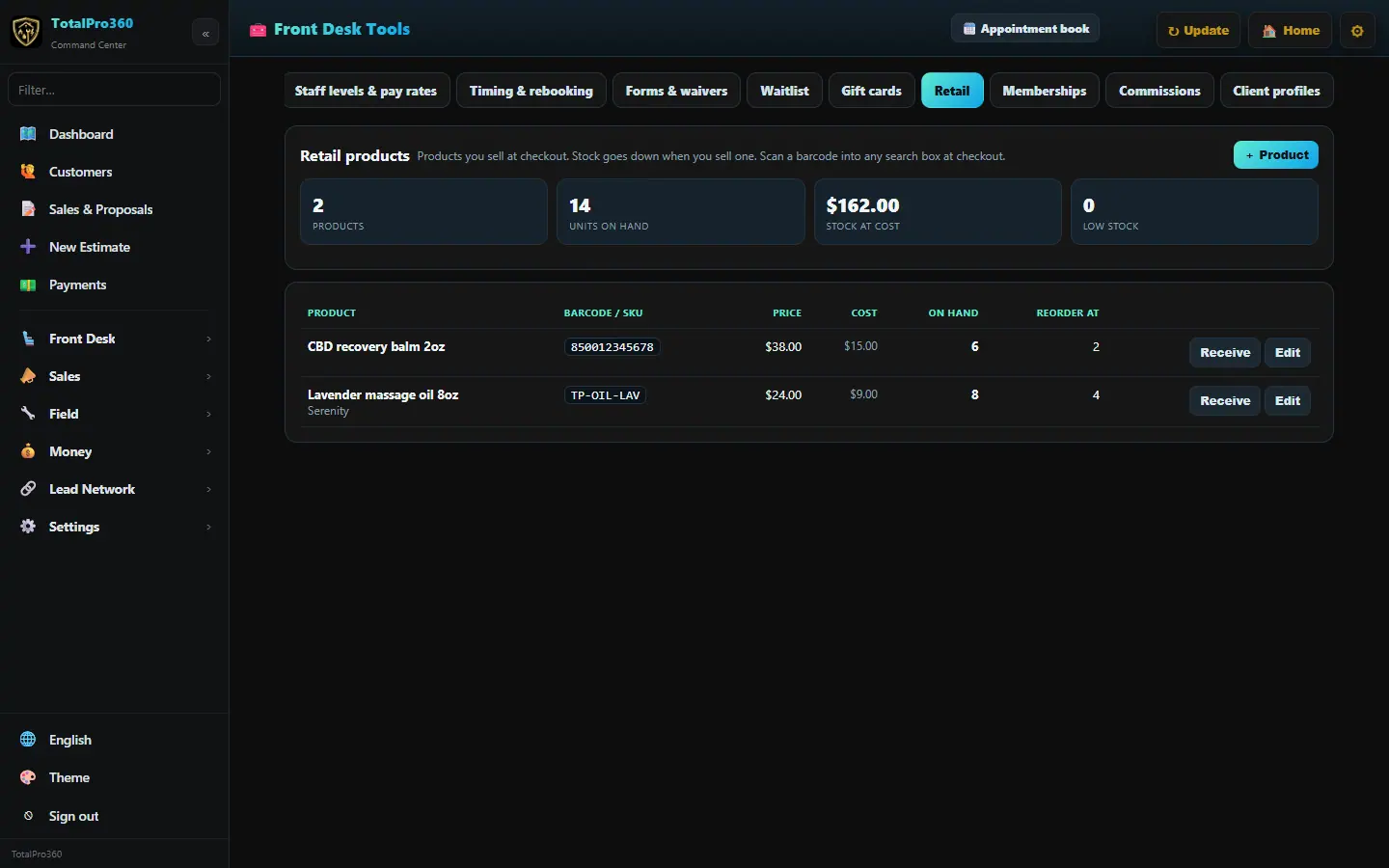
Step 1: Add your products
Open Front Desk → Retail and add each product with its price, barcode or SKU and stock on hand.
Step 2: Sell at checkout
At Check out, scan a barcode or search for the product. Stock counts down on its own.
Step 3: Set commission rates
Open Staff & Products → Commissions and click Edit each person’s rates. That opens Staff levels & pay rates, where you type each provider’s service commission % and retail commission % and click Save on their row. Leave a box empty to use your default. Edit default rates opens Policy & cards, where the defaults live. A service can also have its own rate in the Service Menu.
Step 4: Review commissions and tips
Open Staff & Products → Commissions to see each provider’s services, retail, commissions and tips for any date range.
Still stuck? Tell us what you were trying to do and where you got stuck. A screenshot helps.
Your ticks are saved in this browser only. Updated October 2026.