Set up automatic messages
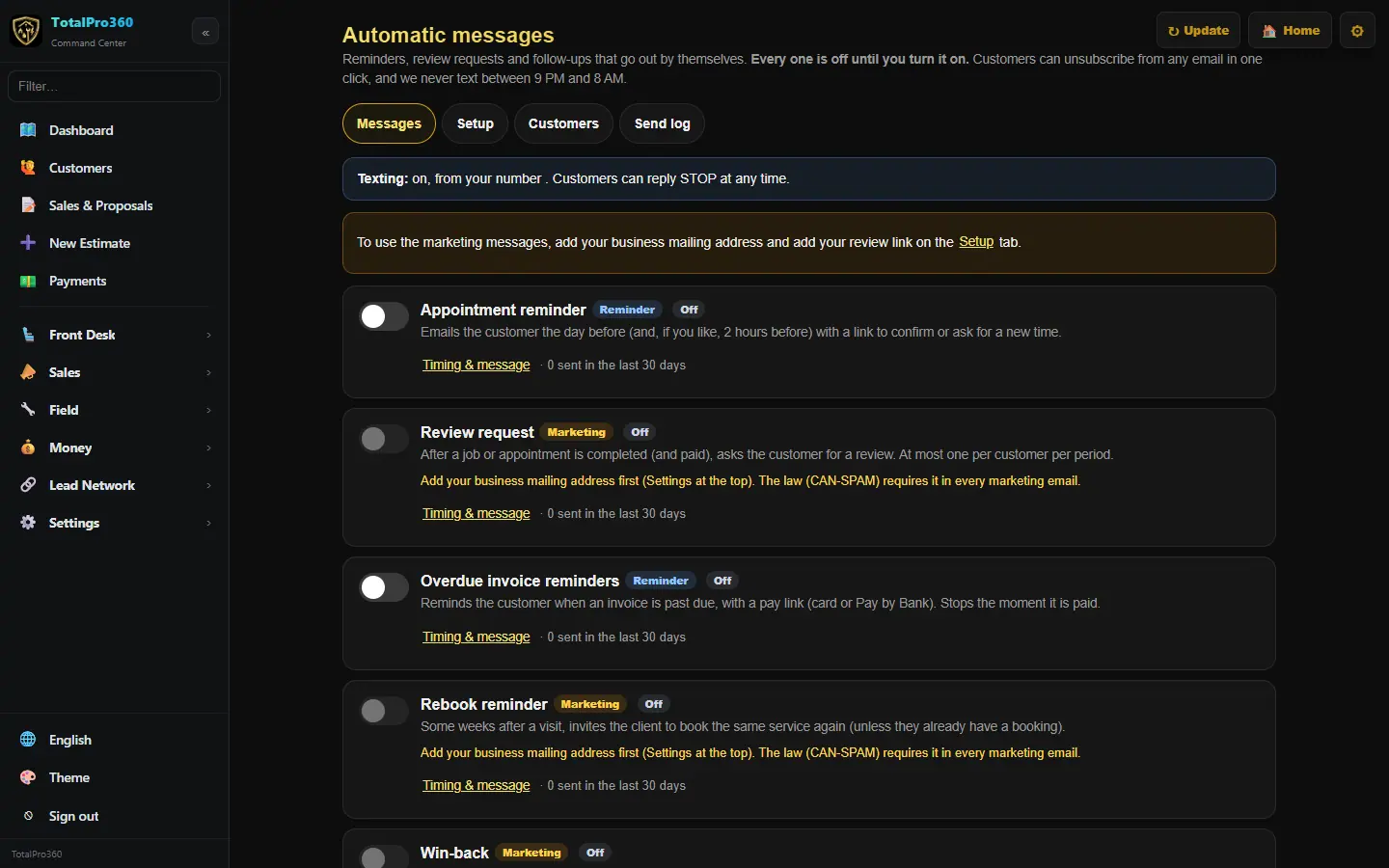
Reminders, review requests, overdue-invoice nudges and more, each off until you turn it on.
Free forever Not a trial. No card, no contract, unlimited staff. Card payments cost 3.9% + 30¢. Our promise →
Step 1: Finish the setup tab
Open Settings → Automatic Messages and the Setup tab. Add your business mailing address (marketing email needs one; click Use my company address) and your review link. Click Save setup.
Step 2: Pick the messages you want
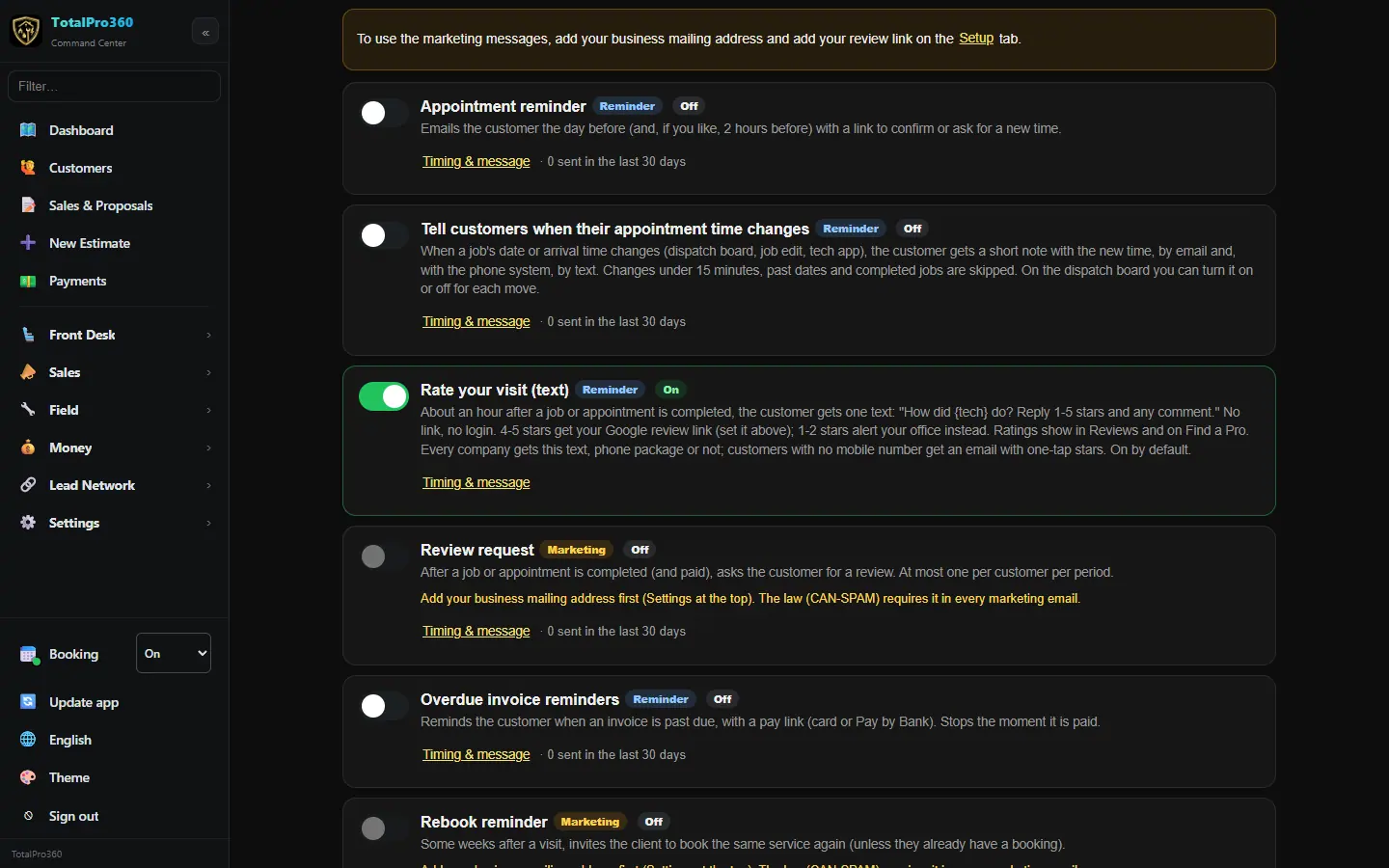
On Messages, the built-in messages are: Appointment reminder, Tell clients when their appointment time changes, Review request, Overdue invoice reminders, Rebook reminder, Win-back and Birthday greeting. Every one starts off. If you go to your clients (mobile service), the built-in On the way text also tells a client when their provider taps it in the provider app.
Step 3: Your booking confirmation
Booking confirmation is on from the start: the client gets an email and a text the moment an appointment is booked, online, by your front desk or by the AI receptionist. Click Timing & message to change the subject, the message and the text. Tap a field like
{first_name}or{date}to insert it. The service, date and time, who it’s with and the confirmation number are always added below your message. Click Preview to check it and Reset wording to go back to ours.Step 4: Tell clients about a new time
Tell clients when their appointment time changes sends a short note with the new time whenever a visit’s date or arrival time changes: by email, and by text with the phone system add-on. Changes under 15 minutes, past dates and completed visits are skipped. It starts off like everything else.
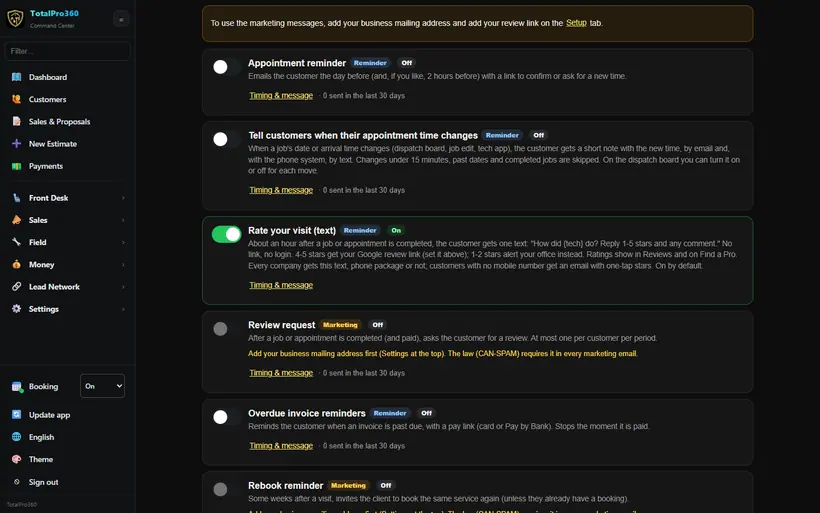
Real screen from the demo account; names and numbers are sample data. Step 5: Set timing and wording
Click Timing & message on one. Set when it goes out and edit the email and text wording. Click Preview to see it, and Reset wording to go back to ours.
Step 6: Check your time zone
On the Setup tab, pick Your time zone and click Save setup. Reminders and every other message go out by that clock.
Step 7: Send yourself a test
Click Send test to me before you turn anything on, and check Who gets it next? to see who it would reach.
Step 8: Turn it on and watch the log
Switch it on. Each card says ON in green or OFF in red, and the line at the top counts how many are on. A client’s own choices (offers by email or text, unsubscribes and STOP replies, with dates) also show on their client profile, and clients can tick Send me offers and news when they book online. The Send log shows every message sent, and Clients lets you see who’s unsubscribed and resubscribe someone who asks.
Still stuck? Tell us what you were trying to do and where you got stuck. A screenshot helps.
Your ticks are saved in this browser only. Updated October 2026.
Questions about this
Will it message my customers without asking me?
Every automatic message starts off, and you turn on only the ones you want. The one exception is the on-the-way text when a tech taps En route, which you can switch off. Emails include a one-click unsubscribe, frequency caps apply, and texts never go out between 9 PM and 8 AM.