The provider app (phone and iPad)
Providers see their day, client details and notes, and take payment from a phone or iPad.
Free forever Not a trial. No card, no contract, unlimited staff. Card payments cost 3.9% + 30¢. Our promise →
Step 1: Get the app
Open dashboard.totalpro360.com on the phone, sign in, and add it to the home screen: in Safari on iPhone or iPad tap Share → Add to Home Screen, and in Chrome on Android tap ⋮ → Install app. The full TotalPro360 app is on its way to the App Store. See Put the app on your team’s phones.
Step 2: The next step is always the big button
Open an appointment and the button at the bottom shows what to do next: Start, then Get the signature, then Complete appointment & invoice. Signing alone doesn’t finish the appointment; the Complete button does, and it makes the invoice. + Add next to it adds items, photos, notes or a parts request, and ⋯ is for anything that’s not right.
Step 3: Sign in
Use the same Business ID with the provider’s own username and password. Providers go straight to their app, never the office screens, and they can’t see or change company settings, even by typing an office address. Tick Keep me signed in on this phone on a phone only they use.
Step 4: Find your way with the menu
Tap ☰ at the top left. The menu has My Jobs (today), All my jobs (today and the week ahead, so you can see what’s coming), Settings and Call the office. Sign out is at the bottom of the menu and at the bottom of Settings. If you have changes that haven’t synced yet, it asks first so nothing is lost.
Step 5: Location (mobile businesses only)
In a salon, spa, barbershop, nail salon, massage studio or auto shop, the provider app never asks for location and never tracks anyone. There’s no location banner and no map.
If your business goes to clients and the owner turned on We go to the client (mobile service) in Settings → Trade Config, location is required while providers are signed in, so the office sees them on the board and the map. If it’s off, a red banner says Location is required for staff while signed in until it’s on. Turn it on in your phone’s Settings, under the TotalPro360 app, then Location → While Using the App.
Step 6: Start the day
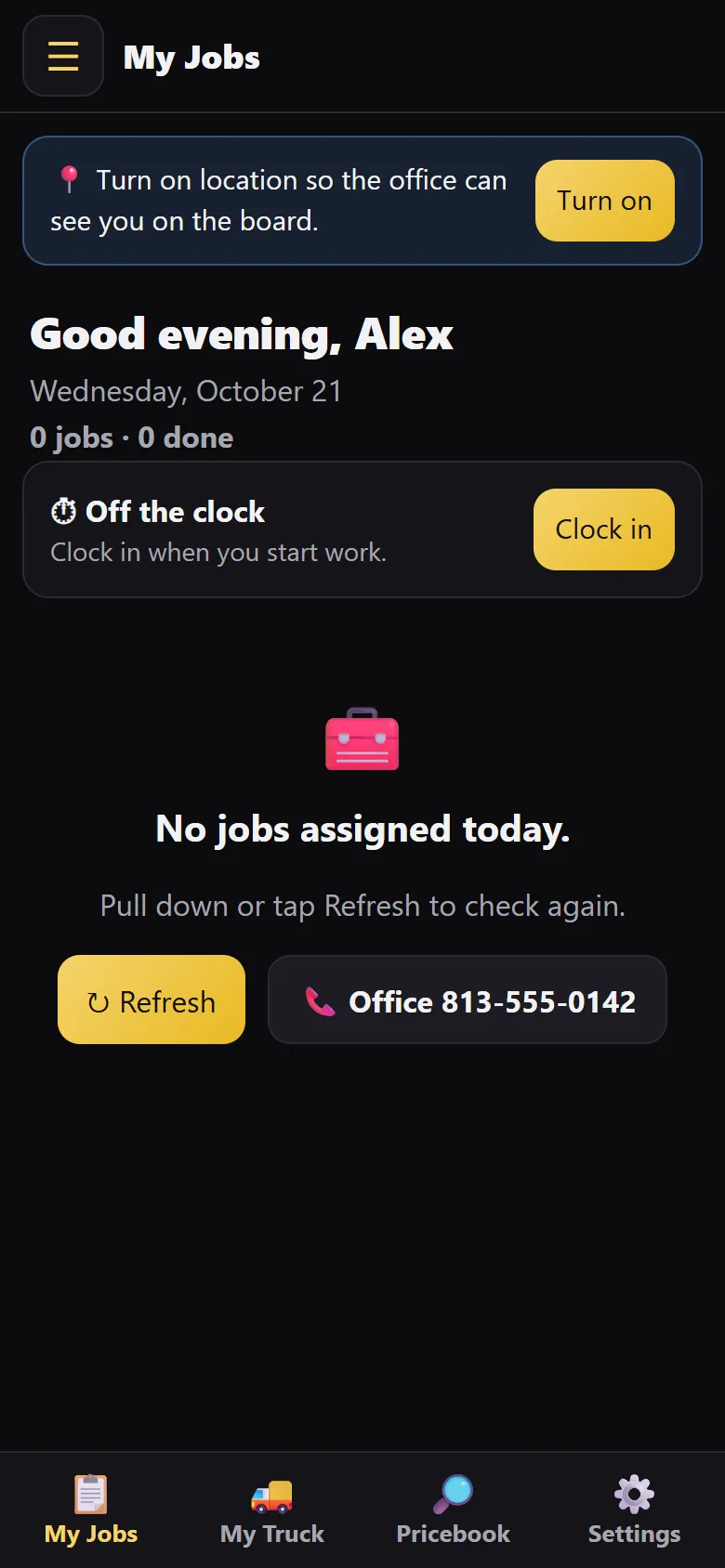
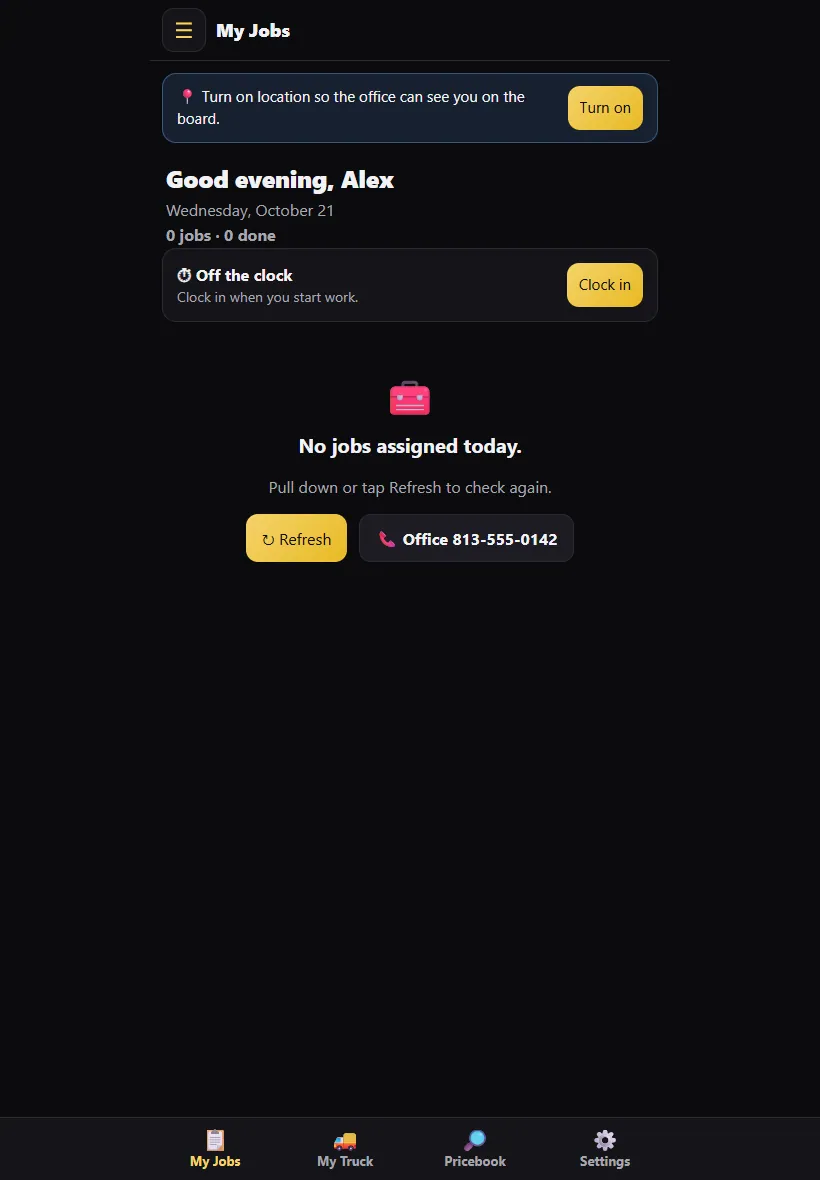
The app opens on My Jobs: today’s appointments in order, with each client, address and time window. Tap Clock in when you start work. If the office clocked you out (say you forgot), you’ll see a notice with the time and reason; tap Got it, and tell the office if it’s wrong. In a mobile business, the app can clock you in automatically when you reach your first appointment of the day; tap Wrong? Tap to fix on the notice if it wasn’t right. In-store businesses never use location, so this stays off. The tabs at the bottom are My Jobs, My Truck, Pricebook and Settings.
Step 7: Open an appointment
Tap an appointment to see the client, service, notes and history. Tap ▶ Start when you begin the service. Mobile businesses tap En Route when they leave, which texts the client that they’re on the way, and I’ve Arrived at the client’s place.
If something’s off, use Client didn’t show, Send a quote, Request more time, Flag to office or Book a return visit.
Step 8: Take payment
Take card, bank (ACH) or cash right from the appointment, or Text the customer a receipt and a pay link. Tap to Pay works on supported Android phones in the pro app. Tap to Pay on iPhone is coming as soon as Apple approves our app. Until then, send a pay link or use Android.
Step 9: Work without signal
If the signal drops, keep working. The app saves on the phone and syncs when the connection is back.
Step 10: Use it on an iPad
On an iPad the same app uses the bigger screen, which is handy at the front desk or station. Office staff can open Field → Tech View (Admin) to see the app the way a provider does.
Still stuck? Tell us what you were trying to do and where you got stuck. A screenshot helps.
Your ticks are saved in this browser only. Updated October 2026.
Questions about this
Is the app free?
Yes. It’s part of the free software, for every provider you add.
Does it work on iPhone?
Today, add it to your home screen from Safari. The full iPhone app is coming to the App Store.
Does the app track my location?
Not in an in-store business. Location is only used when your business goes to clients (mobile service), and then only while you’re signed in, so the office can see who’s nearest.